
Show buyers their home, not a stock photo.
Smart Renderings apply the buyer's Design Studio selections to the factory's own photos of that floor plan. Cabinets, countertops, flooring, backsplash, siding and shutters change. The room, the angle and the light stay exactly as the factory shot them.
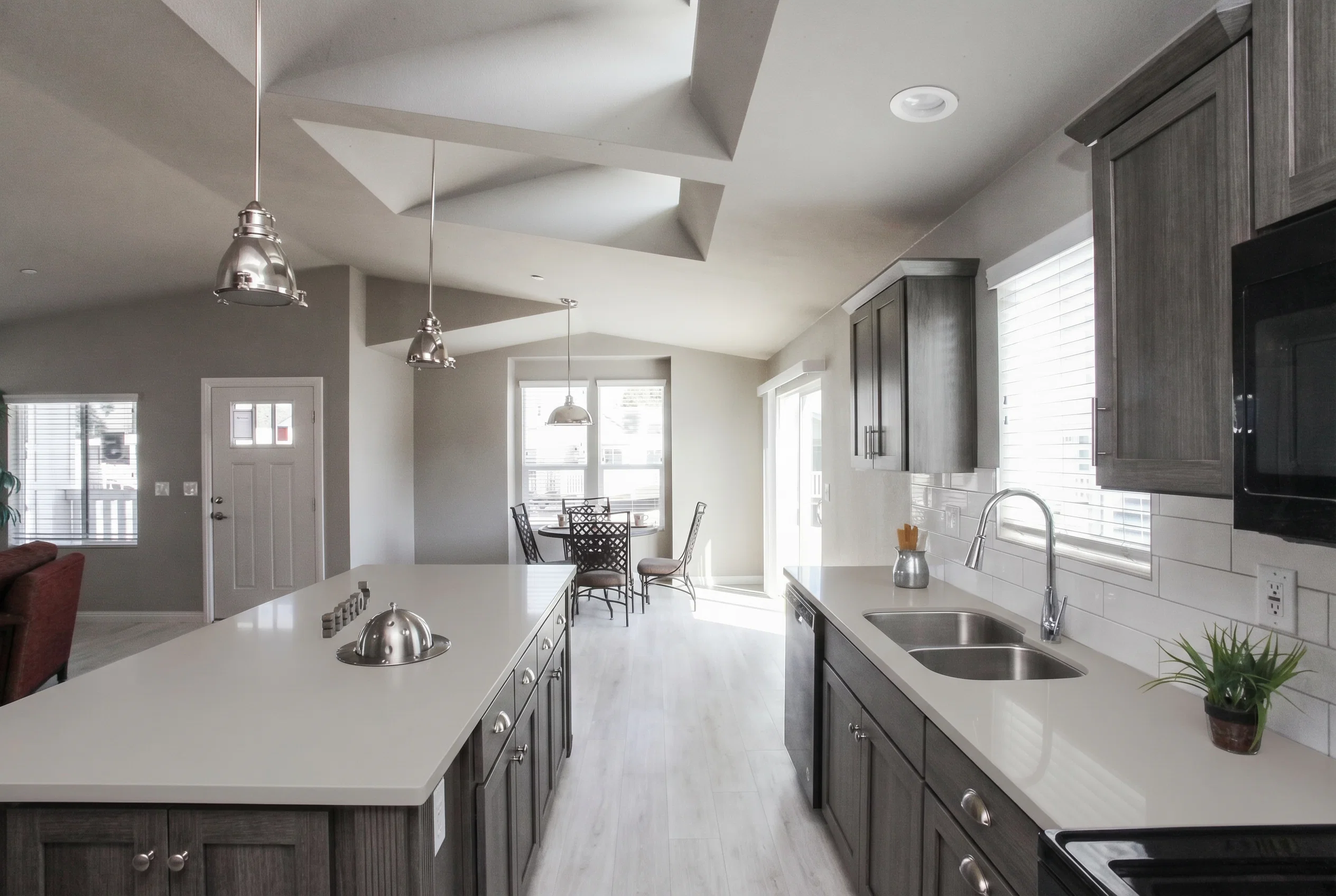
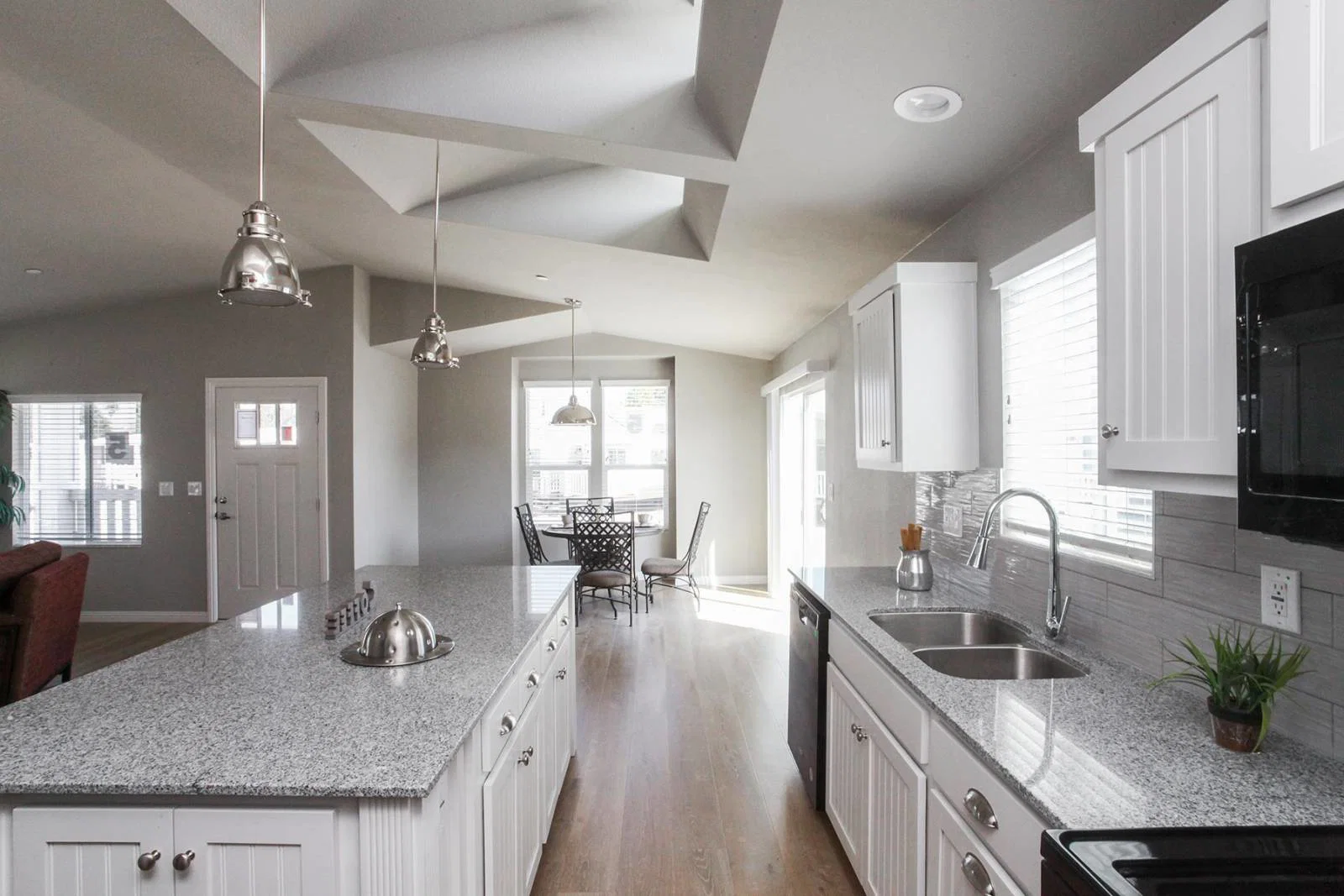
Design selections shown in smart rendering
- Laguna Cabinet in Glazed Granite
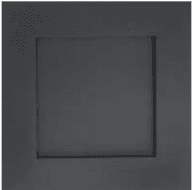
- 2" x 6" Glossy - Canvas White

- Pearl Gray Corian Countertop

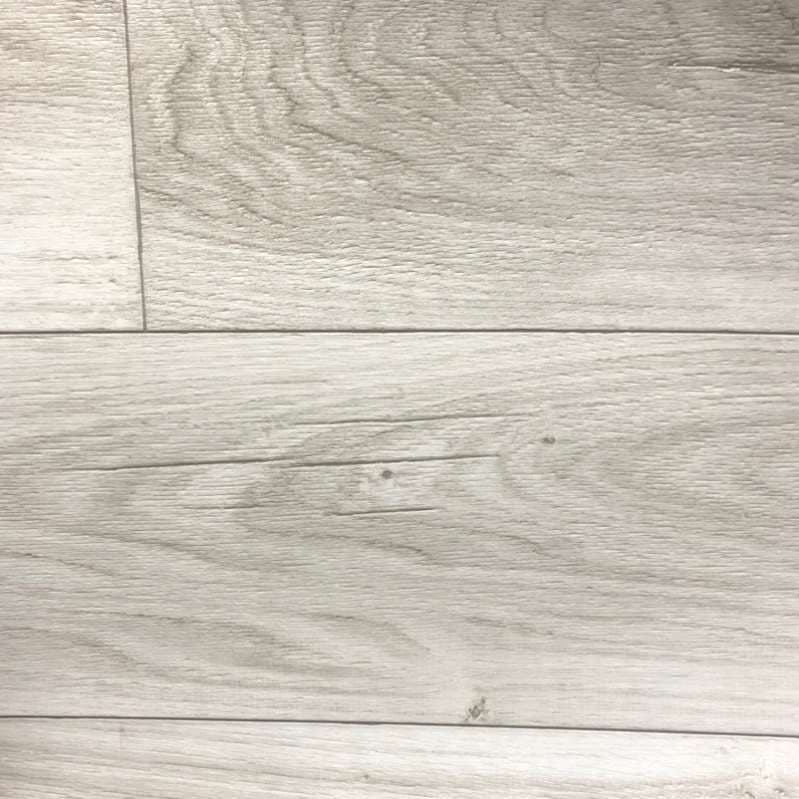
- Nordic White Linoleum Flooring
How a Smart Rendering is made
No photographer, no 3D artist, no waiting on the factory. The studio already knows the home and the selections, so it only needs a click.
- 1
Tag the photos
Mark each factory photo as Kitchen, Bath, Bedroom, Living Room, Exterior or Flooring once. Trove uses those tags for every buyer after that.
- 2
Buyer makes selections
Shoppers choose finishes in the Design Studio exactly as they do today. Swatches and color values ride along with each option.
- 3
Click Generate
Trove renders one image per tagged photo and matches the right options to each room, so flooring shows in the kitchen but not on the exterior.
- 4
Verify and share
Your team reviews, regenerates or hides any image. Verified renderings show in the studio, on the shared link and in the project PDF.
A comparison viewer buyers actually use
Every rendering opens next to the original photo. Buyers can switch between Rendering, Original, Side by Side and Slider views, or press Animate to sweep between the two.
- Drag slider works by touch on phones and tablets
- Animate mode sweeps or fades between photo and rendering with a speed control
- Keyboard shortcuts for showroom screens: A to animate, Space to switch mode, arrows to move between images
- Images fill in as they finish, so the viewer opens immediately
The right options land in the right room
Trove does not paste a swatch over a photo. Each job sends the base photo, the selected option swatches, their names and color values, and an instruction to change only those surfaces.
- Seven room types: kitchen, bathroom, bedroom, living room, exterior, interior and flooring
- Flooring is carried into the kitchen, bath, bedroom and interior shots automatically
- Bath shots pick up cabinets, counters, backsplash and hardware when they apply
- Homes without their own photos fall back to the series photos
Your team decides what a customer sees
AI output is reviewed before it goes customer-facing. Regenerate an image with different options or a plain-English note, hide the ones you do not like, and nothing is ever permanently deleted.
- Verify an image before it appears to customers
- Regenerate with instructions like “make the siding a lighter shade”
- Renderings are flagged as outdated when the buyer changes an option afterwards
- Hidden images can be restored at any time
Where renderings show up
Once verified, a rendering follows the configuration everywhere the buyer and your sales team look at it.
Inside the Design Studio
Buyers and team members open the renderings viewer right from the configuration they are working on.
On the shared link
Every saved design has a share link. Verified renderings appear there for spouses, co-buyers and lenders.
In the project PDF
The CRM project PDF adds a Smart Renderings section, so the proposal shows the home the way it was ordered.
Inline previews
Optionally show quick per-room previews as the buyer clicks through selections, scored by a reviewer model before display.
Buyer feedback
Shoppers can thumbs-up or thumbs-down an inline preview and request a retry, and dealers can pin the version they like.
Permissions you control
Turn generation on per site and limit it to team members or open it to every shopper.
Frequently asked questions
Let buyers see the home they are ordering.
Fewer change orders, fewer surprises on delivery day, and a studio experience competitors cannot match.
Get started with Trove
Bolster your sales & product team with Trove